
Translated material
Picocrypt - a very small encryption program
The evolution of encryption programs and services has been difficult to date. From the wonderful command-line PGP of the first half of the 90s to "Protect your files with one click." Demand for simple utilities for symmetrical encryption has always been. The greenhouse was already talking about one such utility - Hat.sh. In this material, let's talk about an alternative to it under the name Picocrypt .
Why and why Picocrypt
For full-disc encryption, the greenhouse recommends Bitlocker (Windows), Filevault (MacOS), LUKS (Linux) and the Cross-Platform Program Veraacrypt . Using some similar tools, including Veracrypt, you can encrypt not only system discs, but also external media like a USB flash drive. Veracrypt also allows you to store important files to a secure file container. And even create a carefully hidden “secret department” in such a container.
To encrypt e -mail, we advise using Mailvelope . Some postal services (for example, Tutanota ) have their built -in encryption tools. Modern messengers have their own encryption protocols. Boxcryptor and Cryptomator are created for routine work with cloud storage facilities.
To whom will Picocrypt come in handy? To the one who wants to quickly and easily encrypt the file or a couple of files “for yourself”. Without multi -step preparation, settings, individual keys and other difficulties.
Picocrypt - Free Program (Foss). Free, with open code, uses the modern cryptographic algorithm XChacha20 . The program is very small: on my disk it took a little more than 3 MB.
On the Internet you can also find a utility with a similar name PicoSRYPT. This is an old, back in 2005, a program for Windows, stuck on version 0.1.1. Do not confuse.
How to encrypt the file using picocrypt
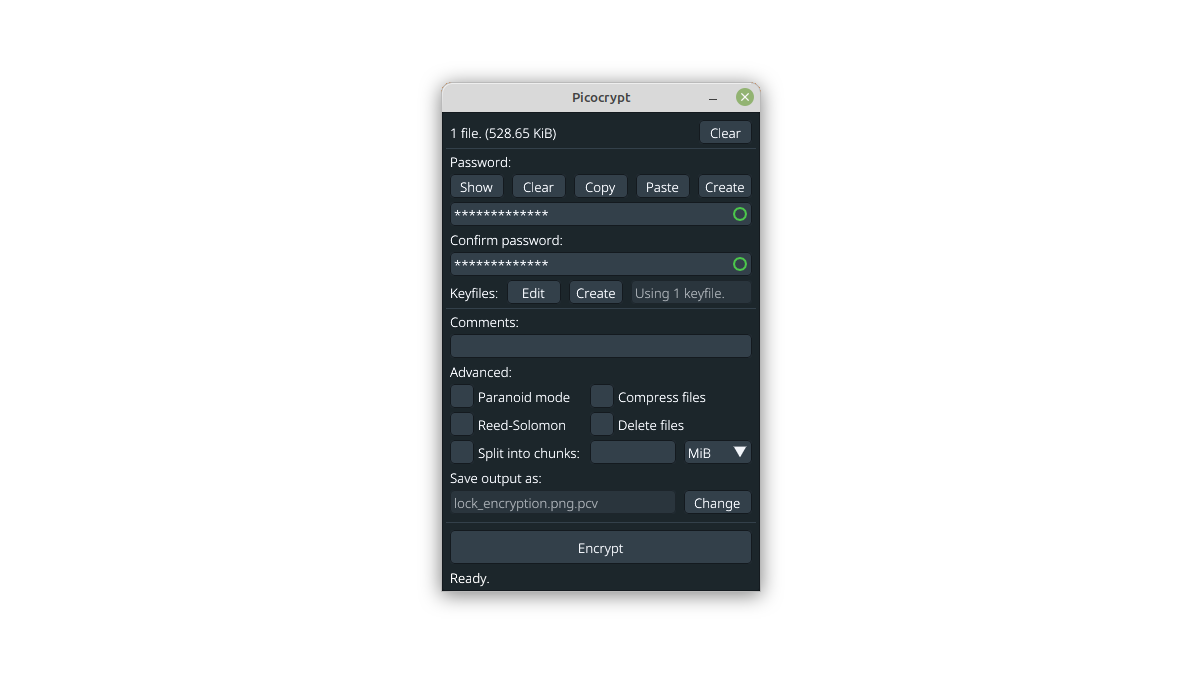
The official website of the program here . After starting, you will see one small window with a set of text fields. No icons - a fee for a tiny volume of Picocrypt.
To encrypt the file, select it with the mouse in the file manager and drag it to the Picocrypt window. You can drag several files or a file with files at once. If you made an error, you selected the wrong file - click the "Clear" button.
Come up with a reliable password and enter it in the next window. There are options here:
- Show - show the password;
- Clear - clean the field;
- Copy, Paste - copy and insert;
- Create - create a password.
Yes, in the baby Picocrypt there is a built-in password generator. You can specify the length (by default 32 symbols) and choose subset.
Of course, the password must be repeated in the next window. Please note: as in most data encryption programs, there is no function of restoring a forgotten password.
KeyFiles is nothing more than two -factor authentication. You can specify the key file (select any existing file or create a new one) so that Picocrypt not only requires the password to access the encrypted data, but also checked the presence of the key file. If the key file is absent or changed, the decoding will not happen. By the way, Picocrypt allows you to do encryption with only a key file (files), that is, without a password.
If you want, you can specify a small text comment in the line "Comments".
By default, the encrypted file is boring "Encrypted.zip.pcv". True, the file is first archiving, and only then is encrypted. This is true for encrypting folders and file groups. When encrypting a single file, Picocrypt will retain its name. If you want, you can change the name of the final file ("Change" button).
Click Encrypt to encrypt the file (s) and save the result to the disk. After that, the Picocrypt window will return to the original state, as if nothing had happened.
How to decipher the file using Picocrypt
Drain the encrypted .pcv file in the first field. Then enter the password in the Password field. If necessary, specify the key file (files) and select the name for the decrypted file. Press the "Decrypt" button and enter the password.
The functionality of the program is associated with the "native" file extension. The .pcv file will be perceived by Picocrypt as encrypted. The program will offer the fields for decoding. And vice versa - a file with an extension different from .pcv, the program will consider not encrypted.
Picocrypt is an extremely honest program. She does not hide the fact that the selected file was previously created Picocrypt. If the key file was used during encryption, Picocrypt will not forget about this. Opening such a file, the user will see a warning: a key file is required. If you rename any file in .pcv and try to open it in Picocrypt, the program will report: this is not an encrypted file. You will be mistaken in the password - Picocrypt will write.
On the one hand, no double meanings, no confusion. On the other hand, if an attacker tries to find an encrypted file “Pump method”, probably with proper patience, success awaits him. Compare with Veracrypt, where an error in the password provides a foggy phrase “incorrect password or not Veracrypt” on the screen.
And one more thing: metadata comments (see above) are really stored in the resulting file, but are not encrypted. It is available for viewing not only when opening through Picocrypt (without entering a password), but also when viewing through a regular text editor. Do not write anything really important here.
Extended settings
There are few of them.
- Paranoid Mode. In this mode, the XCHACHA20 algorithm is complemented by encryption with the Serpent algorithm. This increases encryption time. The winnings in crypto resistance for most of our readers are doubtful.
- Compress Files. Additional compression of files before encryption. The option is probably making sense for single files, moreover, also stuck (such as .doc or .docx). With a photograph of .jpg, there is no significant decrease in the file volume to be achieved.
- Reed-Solomon. A rather specific method of checking/correcting errors. Usually it is recommended if the encrypted file is planned to be stored for a long, long time on any medium, or the carrier itself is not very reliable. Reed-Solomon adds “extra” 8 bytes of data to 128 bytes of information. This “internal partial autobeskap” increases the chances of restoring damaged data. In simple language, if up to 3% of the file is spoiled, Reed-Solomon will give you hope. The price for such insurance is a slowdown in encryption.
- Delete Files. After the file was encrypted, its original is deleted. In the decryption window, a similar option for deleting an encrypted file is called “Delete Volume”. However, I was not able to find mention of the method of deletion-whether any algorithms are used there that prevents the recovery of the file.
- Split Into Chunks. Divide the obtained encrypted archive into fragments. It is unlikely that this has any practical value for a task with several files.
- Force Decrypt (in the decryption window). By default, Picocrypt checks the decrypted file for integrity and deleys the file for the safety of the user if it finds an error. This insurance can be disabled in the "Force Decrypt" field.
Try Picocrypt. Perhaps this program will replenish your arsenal of useful encryption tools.