
Translated material
Element: Instructions for use
Why element?
Element is a free decentralized messenger with through encryption, which provides anonymity of users. Unlike most modern messengers like Telegram, WhatsApp or Signal, Element does not require a mobile phone number when registering. Therefore, it is suitable for those who monitor security and prefer not to share any data about themselves.
Chapter 1. Install Element
1. Creation of an anonymous email account
To begin with, we will create a new mail account, for example, in Proton Mail . We do not advise using your working or personal mail to bind the future Element account: this can harm your anonymity. When creating the Proton Mail account, do not add another email or phone number.
When inventing an anonymous email address, do not use the data on which it can be associated with your real person. Dmitry Ivanov, who lives in Paris, is not suitable for addresses such as [email protected] , [email protected] , [email protected] . Even [email protected] is not suitable if Dima plays a bass in a rock band in his free time. People often try to emphasize their personality in nicknames, which works against the idea of anonymity. A good nickname for our purposes can look like [email protected] , [email protected] , [email protected] , etc.
Do not use an existing nickname. If you are cheddarcheze in Telegram, and your working address [email protected] , for a new anonymous account you will need something else.
The password to the email account is best stored in a password manager, such as Bitwarden or Keepassxc . After creating the account, do not forget to enable two -factor authentication in the settings. It is better to do this through the mobile application of the codes generator. Be sure to create reserve codes and save them in a safe place (for example, in an encrypted file or other base in a password manager).
2. Creating an Element account
We are registered in Element through a newly -made anonymous mail. We do not advise logging in Element through the accounts of Google, Github, Facebook, etc. - This increases the connectivity of the resources. The higher the connectedness, the higher the chances of the attacker through access to one resource gain access to other resources.
- Open the registration page on the official website Element in the browser.
- Anonymous Matrix network serves as the basis for the Element messenger. You will see the words “your account is served” and the address of Matrix.org by default. Here you can leave everything as it is.
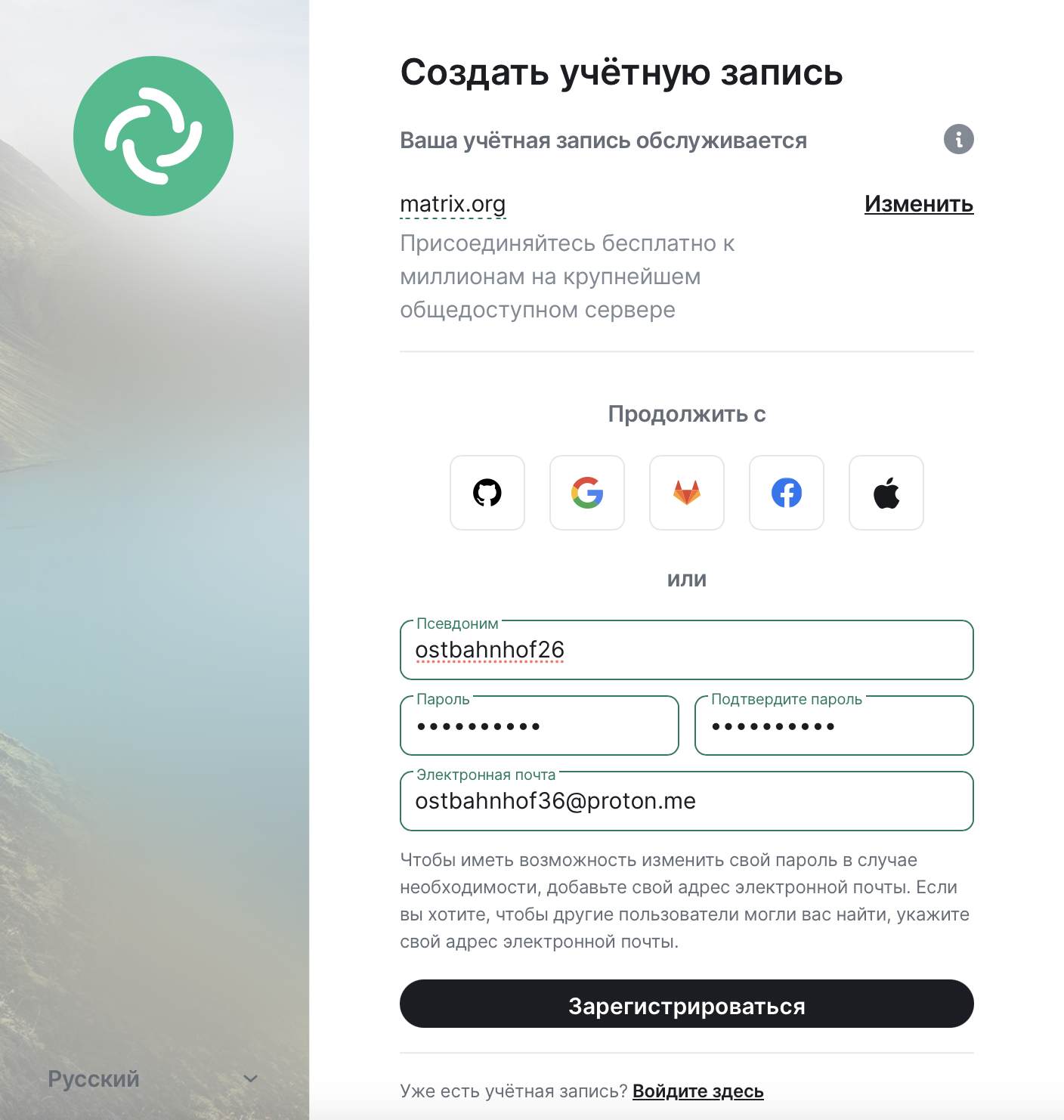
- Come up with nickname (pseudonym). Guide the tips for anonymous mail above.
- After filling out the remaining fields and the Matrix use policy, click the "Register" button.
- The specified email will receive a letter from Matrix Notifications with the name “Validate Your Email”. Confirm the registration of the link in the letter ("Verife Your Email Address").
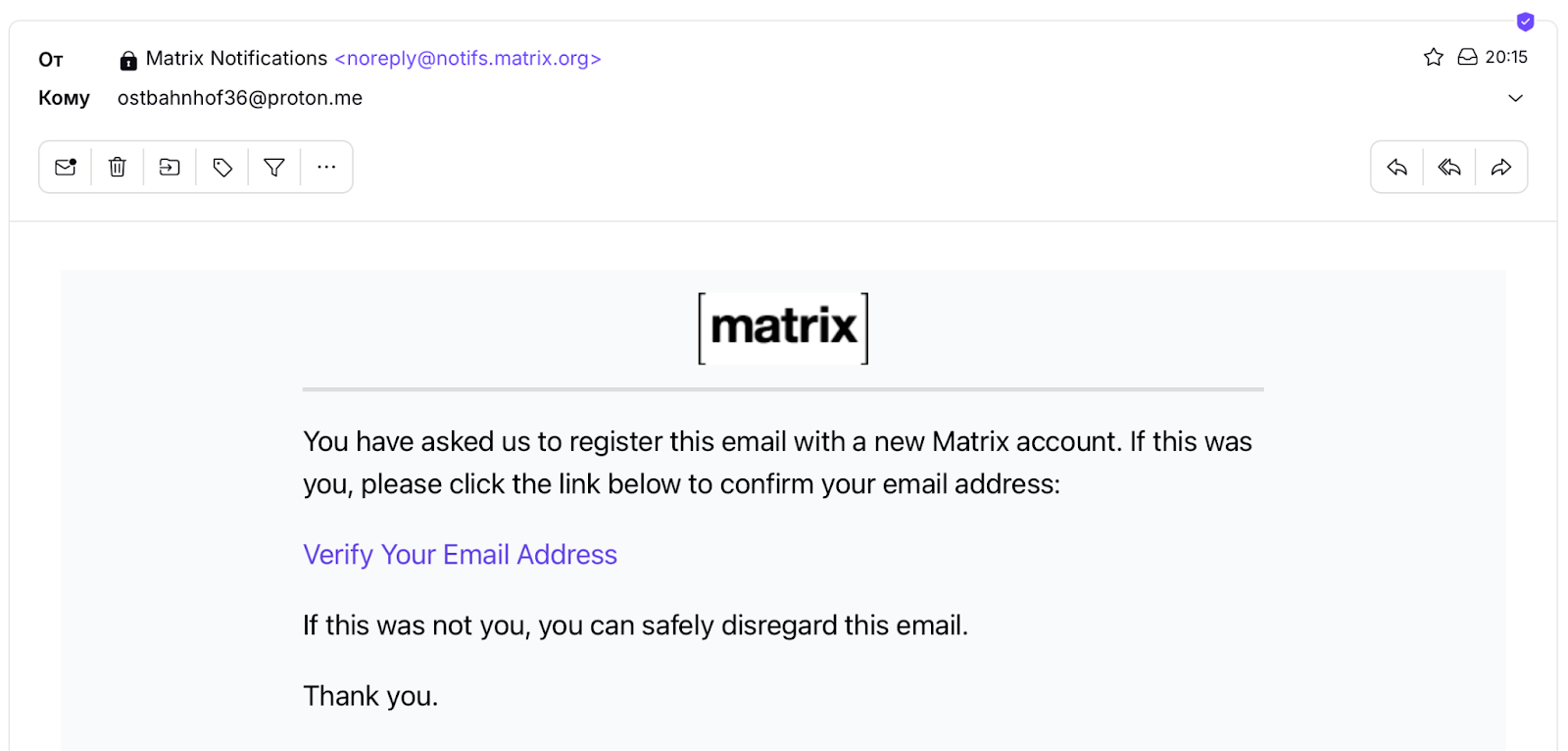
- In a separate browser window, Matrix will report that the account is created and the window can be closed.
- The question "Who will you communicate with most often?" You can skip.
Your Element account is created! You are in the main Element window. The sections “People” and “Rooms” are visible on the left, while there is empty. 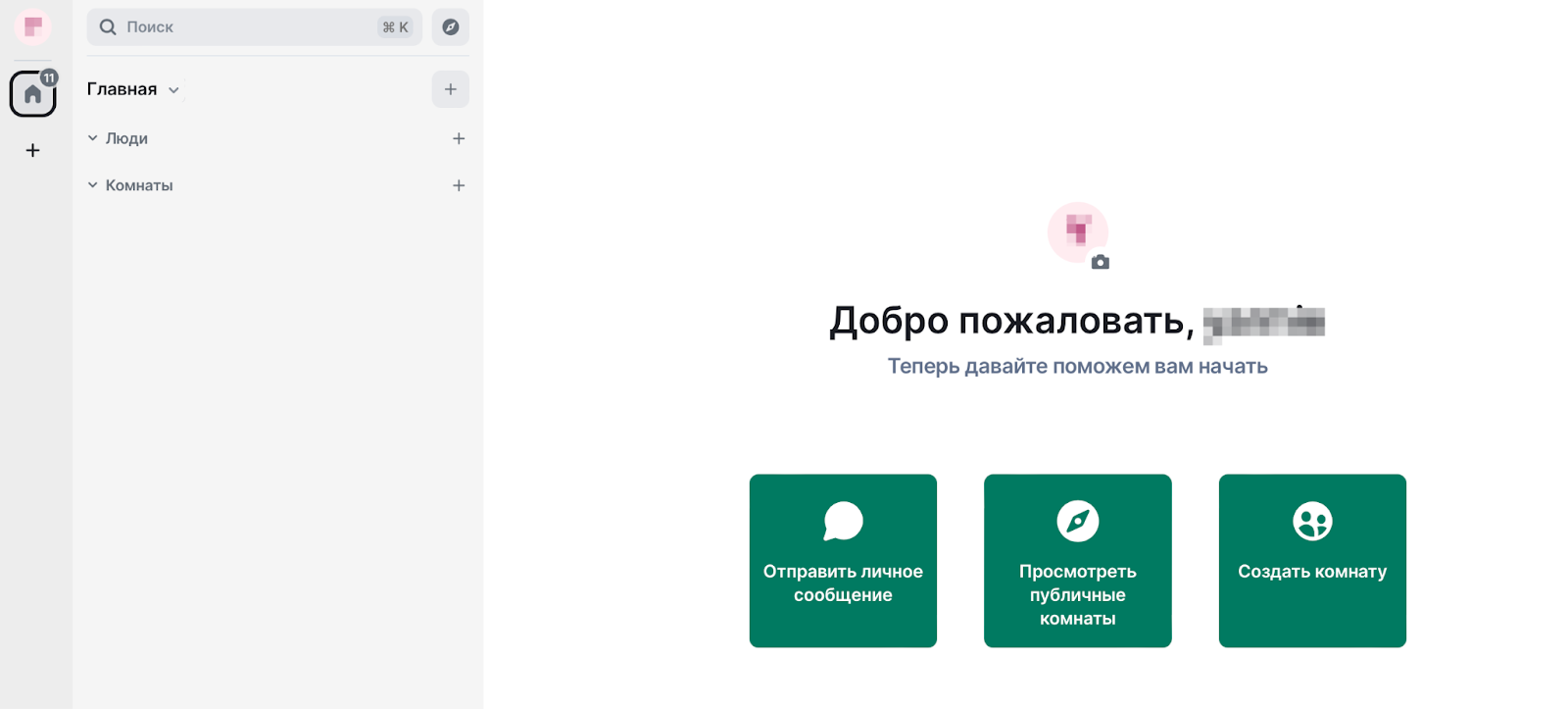
3. The necessary security settings
The “safe backup” function is a very important security step. It guarantees that you will not lose access to your encrypted messages and data after leaving the account.
- Go to the backup settings section. You will see such a window:
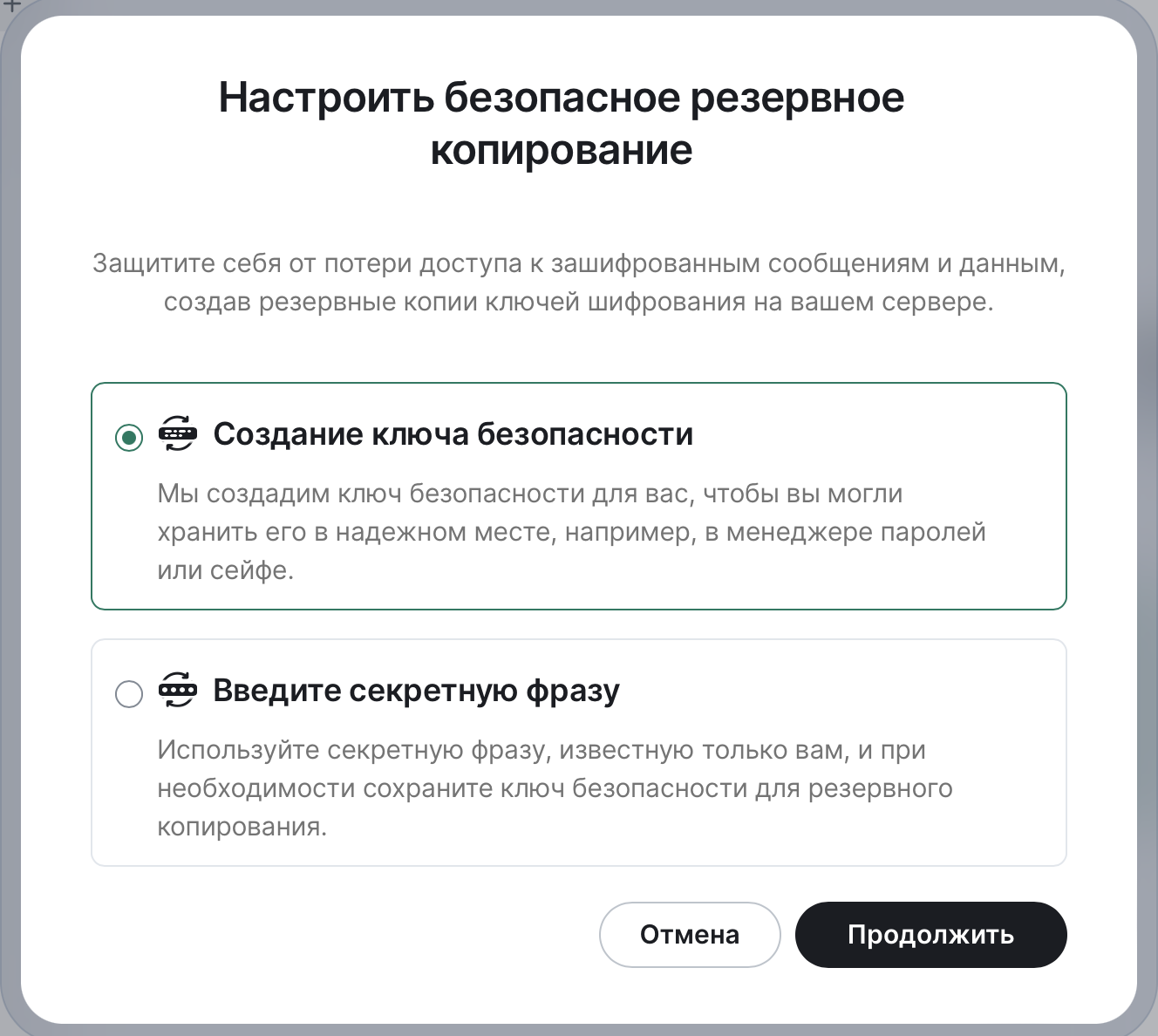
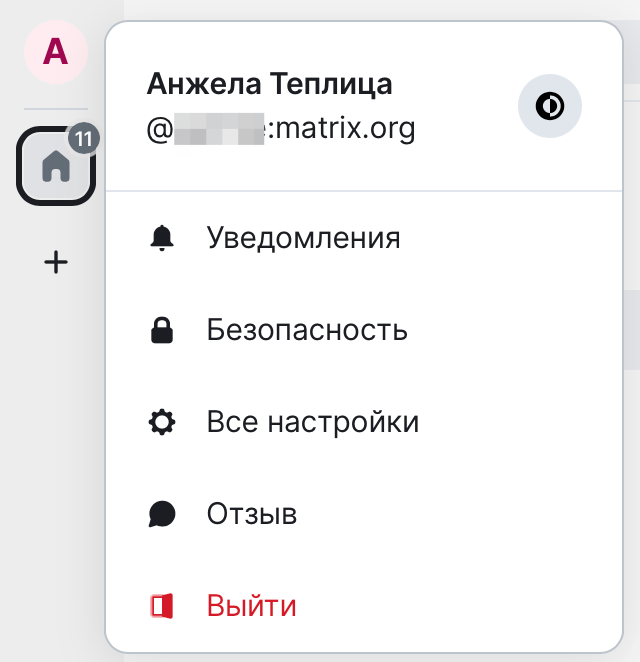
If there are no windows, go to the settings. In the panel on the left, click on the circle with the first letter of the login and go to the "Security" section. You need the first section - encryption, and “configure” in it.
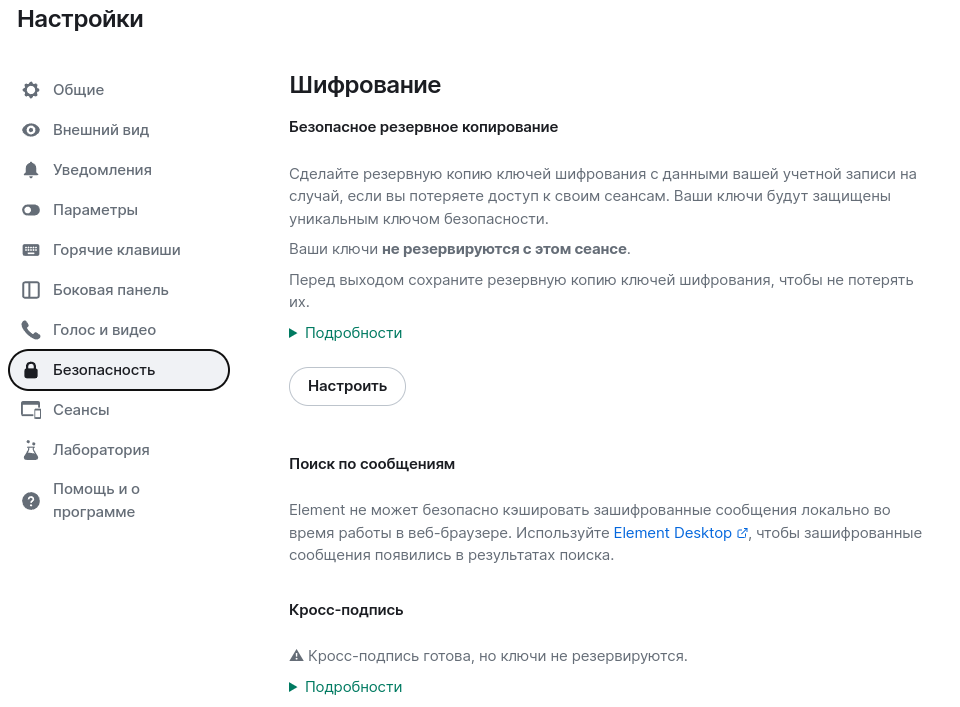
- Select one of the reserve copying ways: the key (this is a random set of characters that generates Element) or a secret phrase (you can set it yourself so that it is easier to remember).
- Save it in a safe place, you can in the same password manager.
- After preserving the phrase, you will be offered to save safety keys. Keys are a reserve method of access to the account in case of loss of phrase. We recommend not copying, but download. Reduce the downloaded file so as not to lose, but do not store in the text file on the desktop.
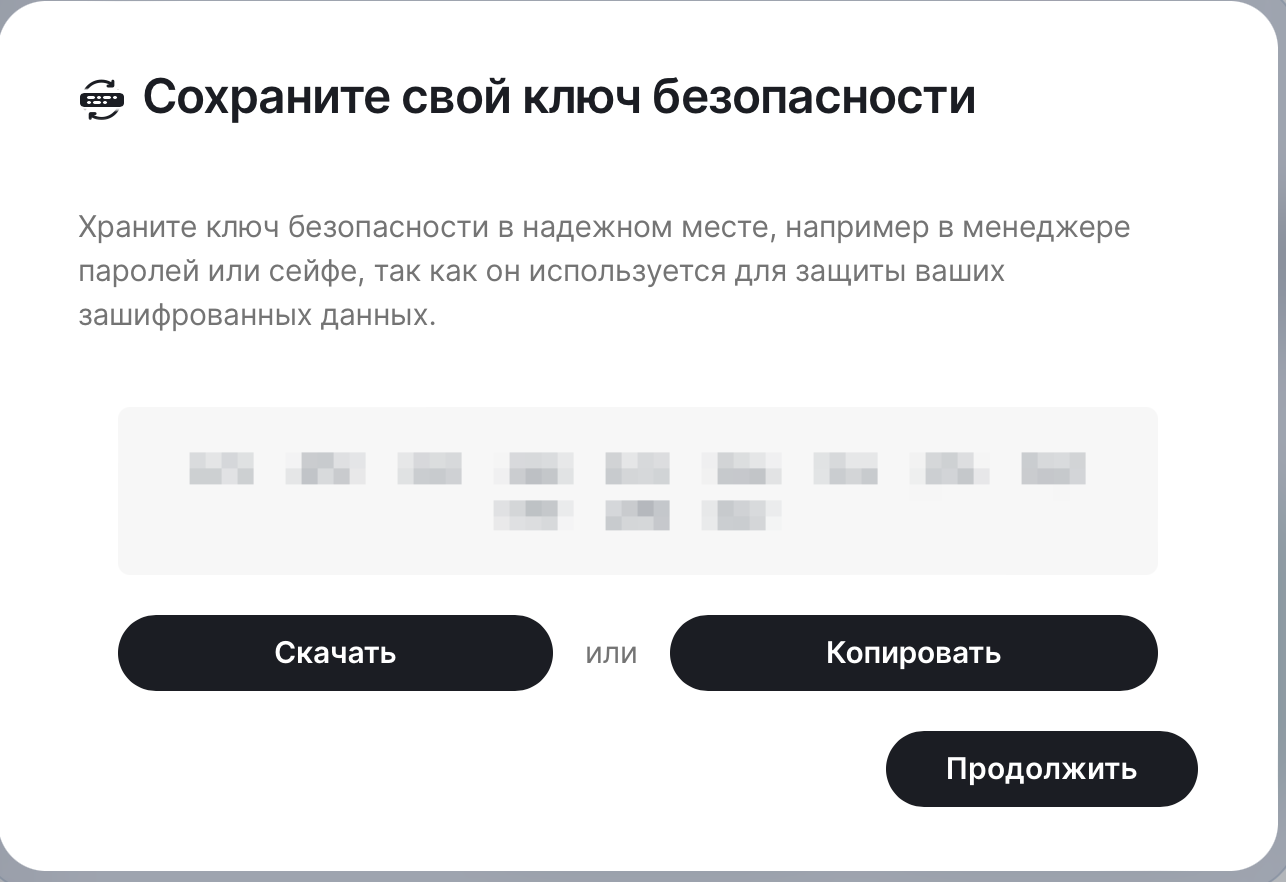
The phrase or safety key will be required (along with the login and password) when re -entering the account. Without them, all correspondence will be displayed as encrypted.
The email address is optional for Element use. After registration, you can remove it from your profile.
4. How not to lose messages when leaving the account
Element has a feature: if the message in group or personal chat was sent when you left the account, its contents will remain encrypted. To prevent this from happening, log in to Element on the second device*.
*With a certain model of threats, to be constantly authorized is unsafe.
Chapter 2. Communication in chats
5. Joining chats
Chats in Element are called rooms. Some of them are public, some are private. Private can only be joined by invitation.
6. Element versions: browser, desktop, application
Messenger can be used in a browser without installation, in a desktop version and/or in a mobile application. If you are constantly or are in unsafe countries and there is a threat of unauthorized access to the device, try to use only the browser version and not install the program or application.
Select the Element versions you need here: https://element.io/download
7. Communication in personal messages
- Find out from the interlocutors their name in Element or tell them your other safe communication channel.
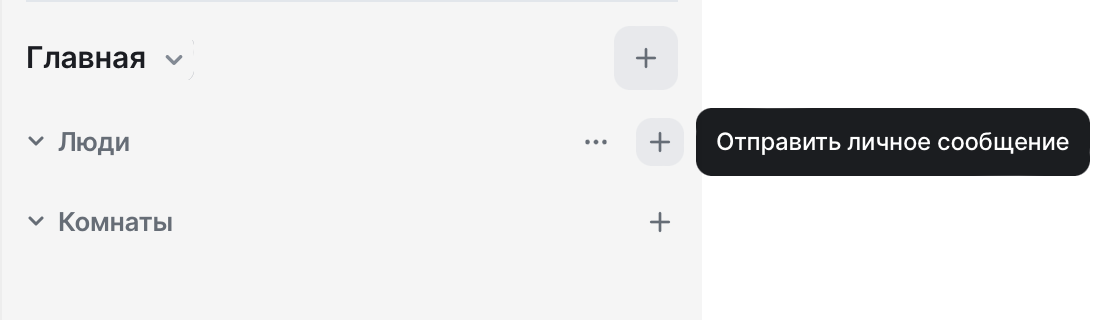
- If you want to start a conversation yourself, find the interlocutor in Element. In the "People" section, click "Send a personal message":
- Enter the data of the interlocutor. Select the right person from the drop -down list.
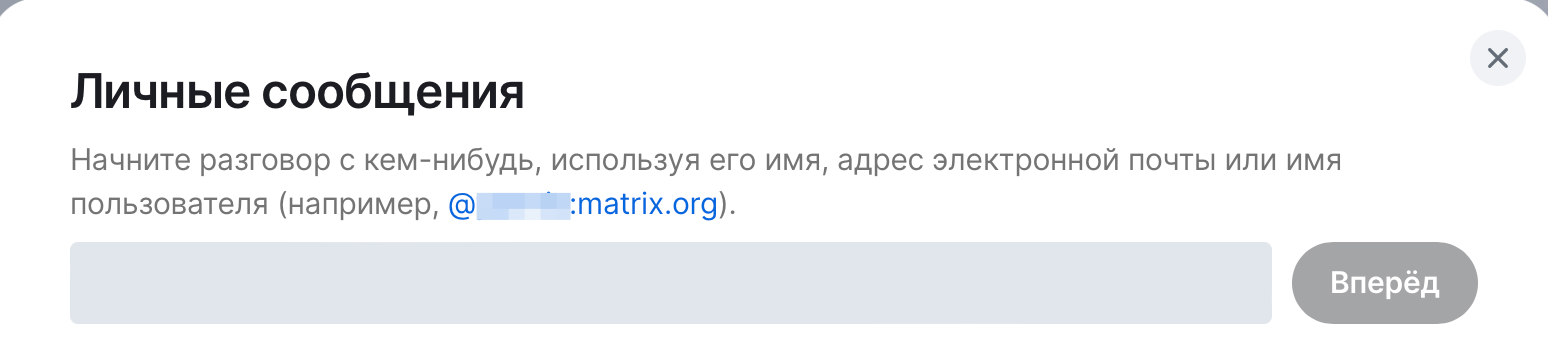
- Invite a person and start communication.
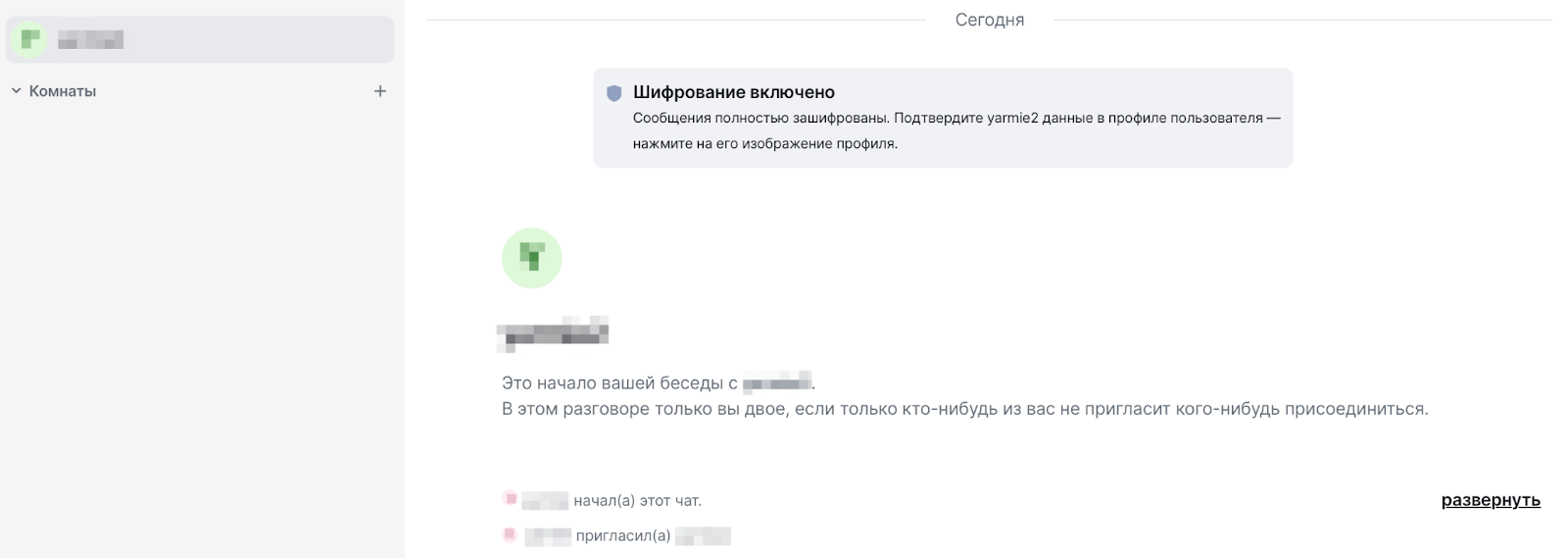
- To automatically decipher what a person writes when you are not in the system, verify the interlocutor. To do this, press the interlocutor icon
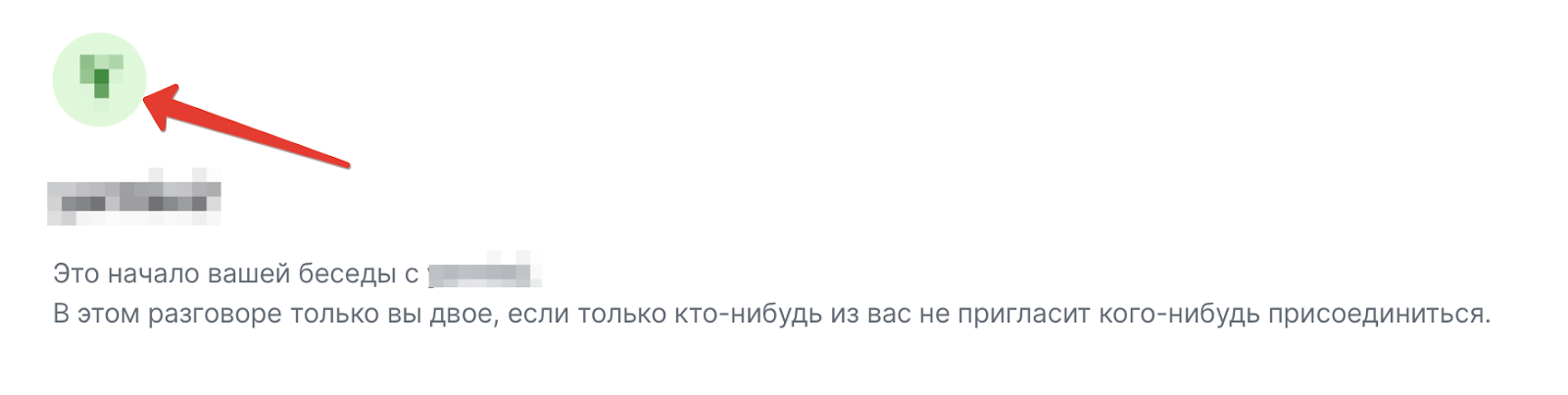
- A window with the details of the correspondence will open. Click "Cure", compare one -time code or emoji with an interlocutor.
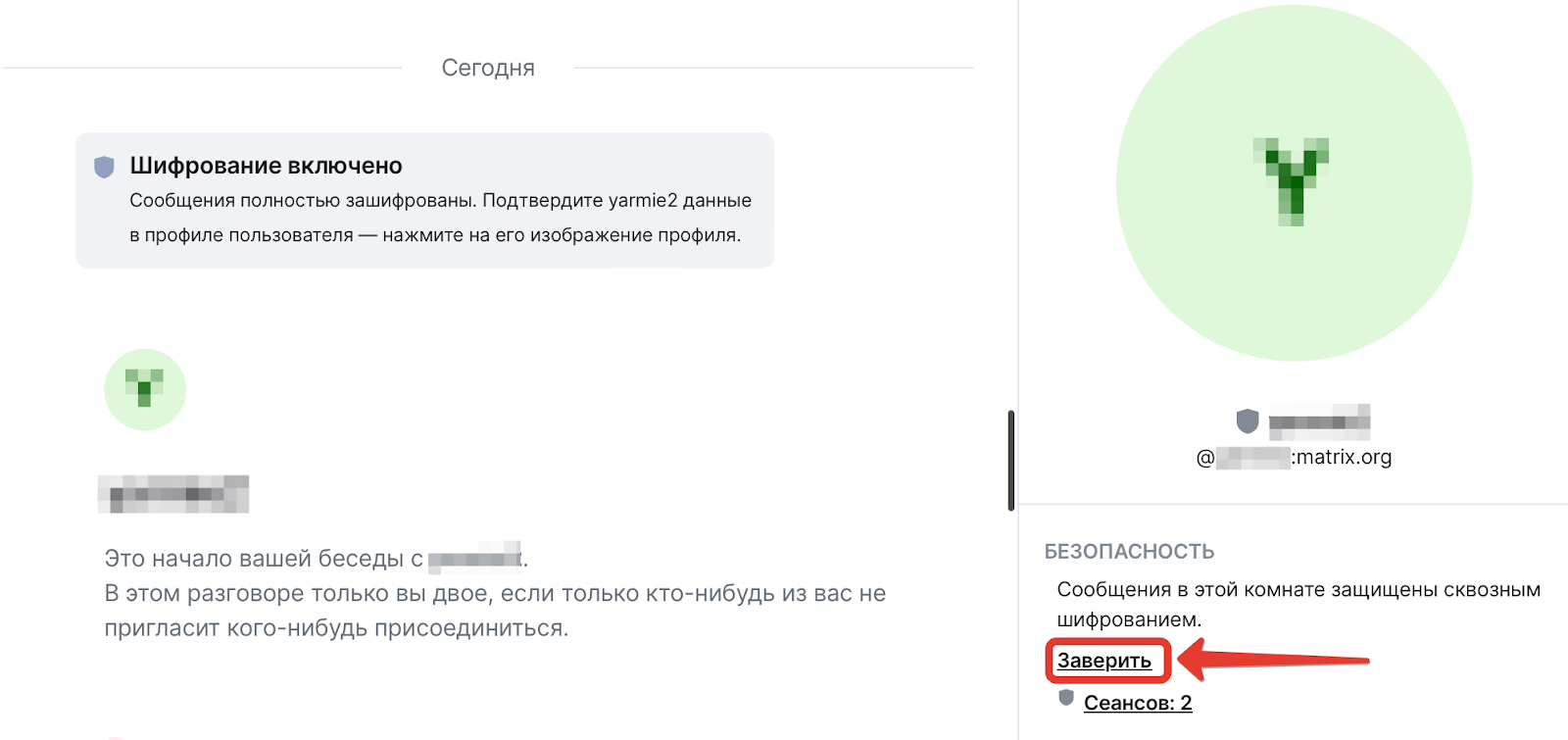
If you do not verify the interlocutors and leave the account, all messages sent to you will be encrypted and you will not read them. To prevent this from happening, see the point above “Important settings, so as not to lose message when leaving the account”.
8. How not to miss messages
Element is an unusual messenger. Therefore, at first you may forget to check it. If you live in safe countries and do not go to unsafe, you can do the following:
- Configure the notifications.
If you use the desktop version or application:
On the computer: “Menu” (your avatar) → “Notifications”.
On the phone: “menu” (your avatar) → user settings → “Notifications”.
We recommend turning off the function “show decrypted contents”.
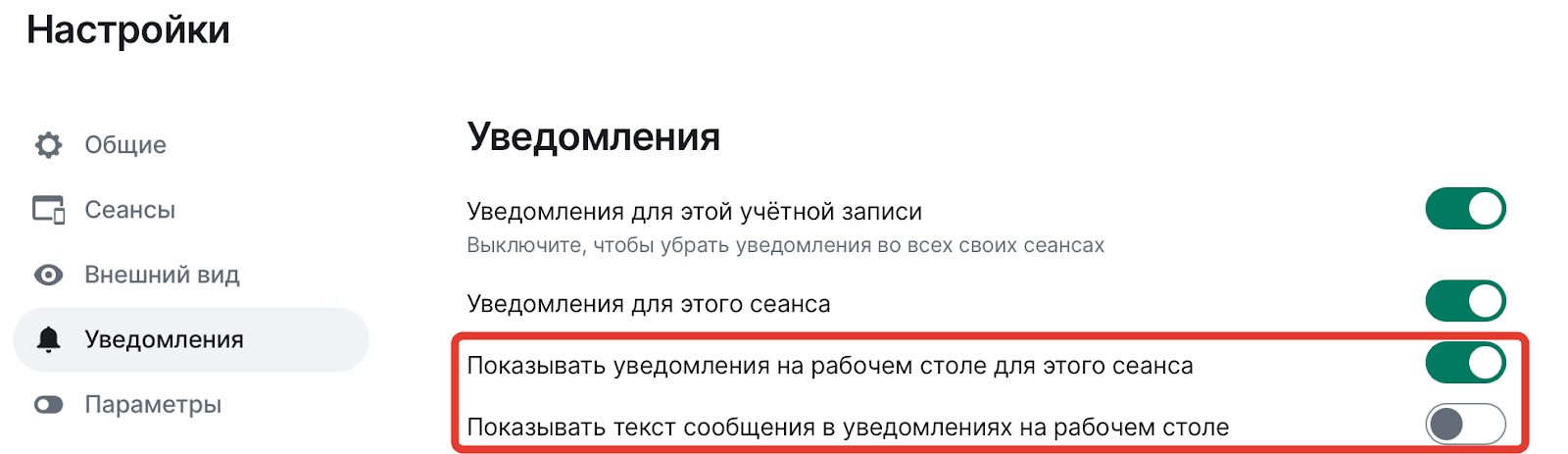
- Configure notifications. Include notifications in the desktop version.
Click on the avatar → “Settings” → “Notifications”.
Select the settings that correspond to your threat model.
9. Change of displayed name
It will come in handy for the interlocutors to better understand who they say. Nick will be hidden, the interlocutors will only see the name. Please note that the use of a name known to many other people and, especially your real name, can reduce your anonymity or even unequivocally identify you.
Select “Settings” → “General” → “Disputed Name”. For example:
Also, this field can be used to indicate a temporary status, for example, “not in touch”. Do not add information about your whereabouts or habits.
10. Using Element with an increased level of threats
The following recommendations are suitable for those who live or happen in unsafe countries or regions - where your device can hack or pick up your device during a search.
- Check if all the basic protection measures for your devices and accounts are observed (the full list in the “Checalist on Basic Security” section).
- When crossing the border, we advise you to take spare devices with you, on which you do not store especially important data and relevant applications. Or delete Element from your devices. (Recommendations in the article “How to prepare for crossing the border of Russia” in the list of literature)
- When working with Element, we recommend using a browser version, best - in incognito mode.
- If you still use the application on the phone, turn off the notifications on the phone. “Menu” (your avatar) → “Settings” → “Notifications”.
- Do not “pull out” messages from Element to a less safe space, as in a text file on a computer. If you need to save a file on the computer (say, a photo for editing), do not forget to delete files from a computer in a safe way after completing work.
- Be careful in conversations in Element if you decide to maintain anonymity. Sometimes a person can be identified by indirect signs, for example, by a manner of communication and even according to his own stories.
- If you have a trustee with access to your accounts, which in the case of an emergency will be able to change passwords, provide him with access to the Element account.
Chapter 3. Cheklists and FAQ
11. Cecalist on basic digital security
Element will be able to protect your correspondence, provided that you care about the safety of your devices as a whole.
Here is the minimum checklist:
- Password for entering the system on a computer.
- Pin-code on the phone. (With an increased level of threats Face -id or a fingerprint is not recommended).
- Reliable passwords and two -factor authentication in the main and often used accounts (including Element).
- Passwords are stored in a reliable, protected place.
- You do not use the same password for several accounts.
- You do not save confidential messages in files on your devices or regularly delete them.
12. Checkman to connect to Element
Element is an unusual messenger, setting it a little more unusual than ordinary messengers. Let's check if you tuned it:
- The account is connected to your unfortunate mail, you saved the password from it in the password manager.
- The account is connected to your unfortunate mail, you saved the password from it in the password manager.
- You have saved your pseudonym in Element and an account password.
- You turned on a safe backup.
- You have saved the phrase and/or safety keys.
- You saved the security key in text form and called it so that you can easily find it.
- You created a second session (Ghost Session or a login on the second device).
- You set the notifications in accordance with your threat model.
13. Useful links for complex security
14. For administrators
- Answers to questions on the use of Element can be found both in the documentation on the interface itself and in the documentation for the protocol - Matrix.
- We recommend that you follow the Labs section (laboratories), which is located inside the personal account in the messenger. There you can track and test the new functions of the messenger.
15. Support for Element and other topics
If you need help to install and configure the messenger, please contact the greenhouse of social technologies . Colleagues are ready to answer questions in writing or in the video chat.
Support for digital security and other topics: Individual consultations - greenhouse of social technologies
16. FAQ (frequent errors in using Element)
- I forgot_a/lost_a password from the account. What to do?
If you forgot your password, visit App.element.io and click on the link “Set a new password”/ “SET A New Password”. Enter the email address that is registered in your Element account, and select a new password. Check the mail and follow the link from the letter from Element.
- I forgot: a/lost: and the key and the secret phrase. What to do?
If you forgot the key/phrase, you can go along the downloaded key (in text format).
How to do it:
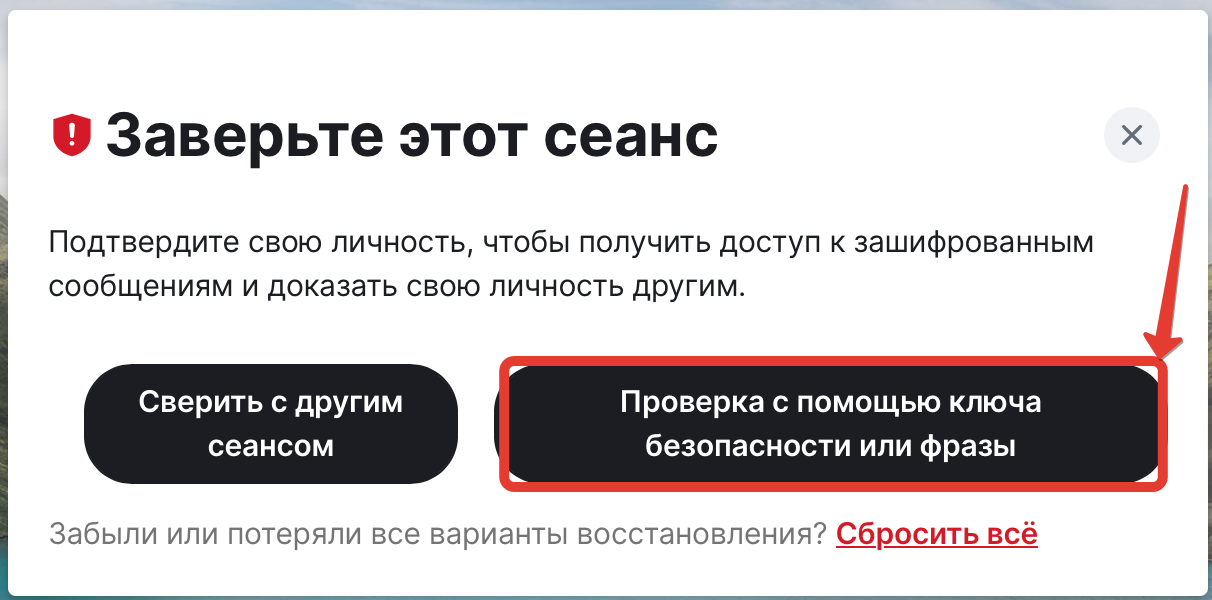
- Click on "Checking using a safety or phrase key"
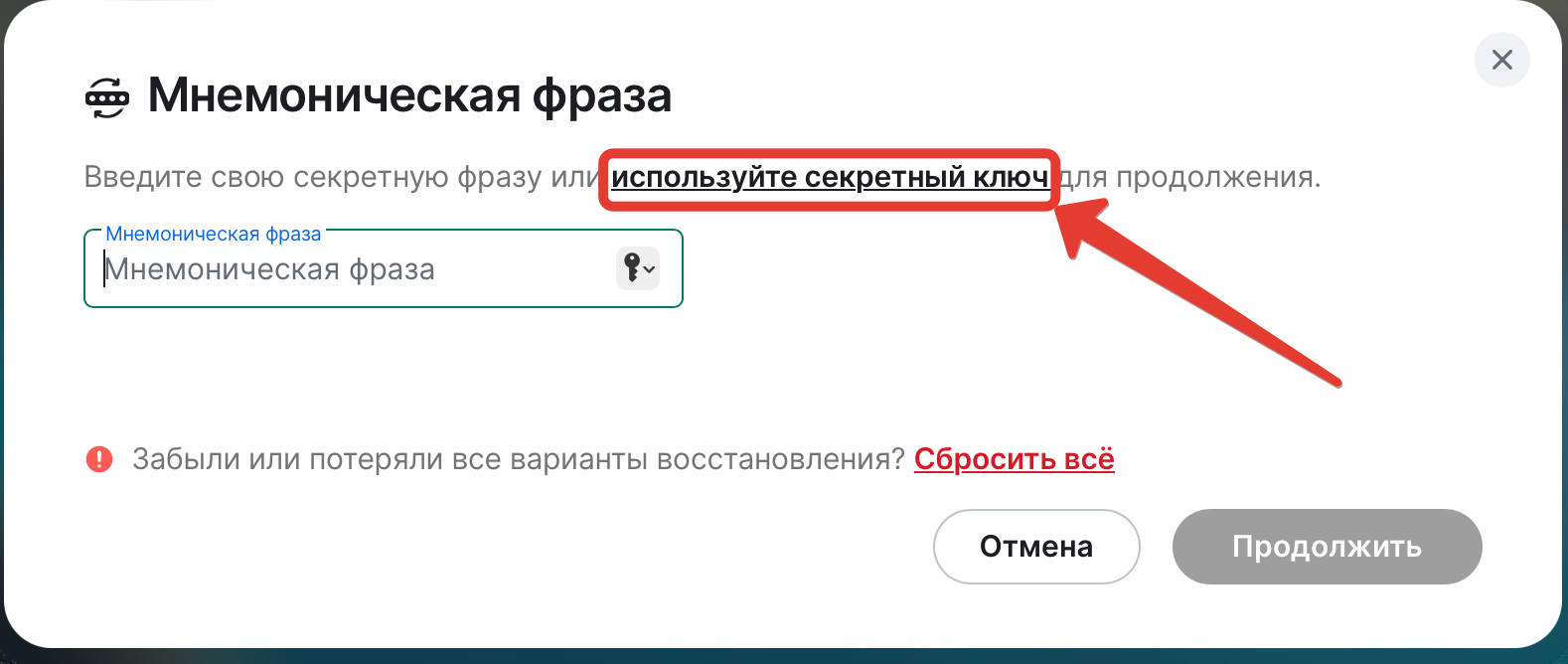
- Instead of a phrase or key, click on "Use a secret key"
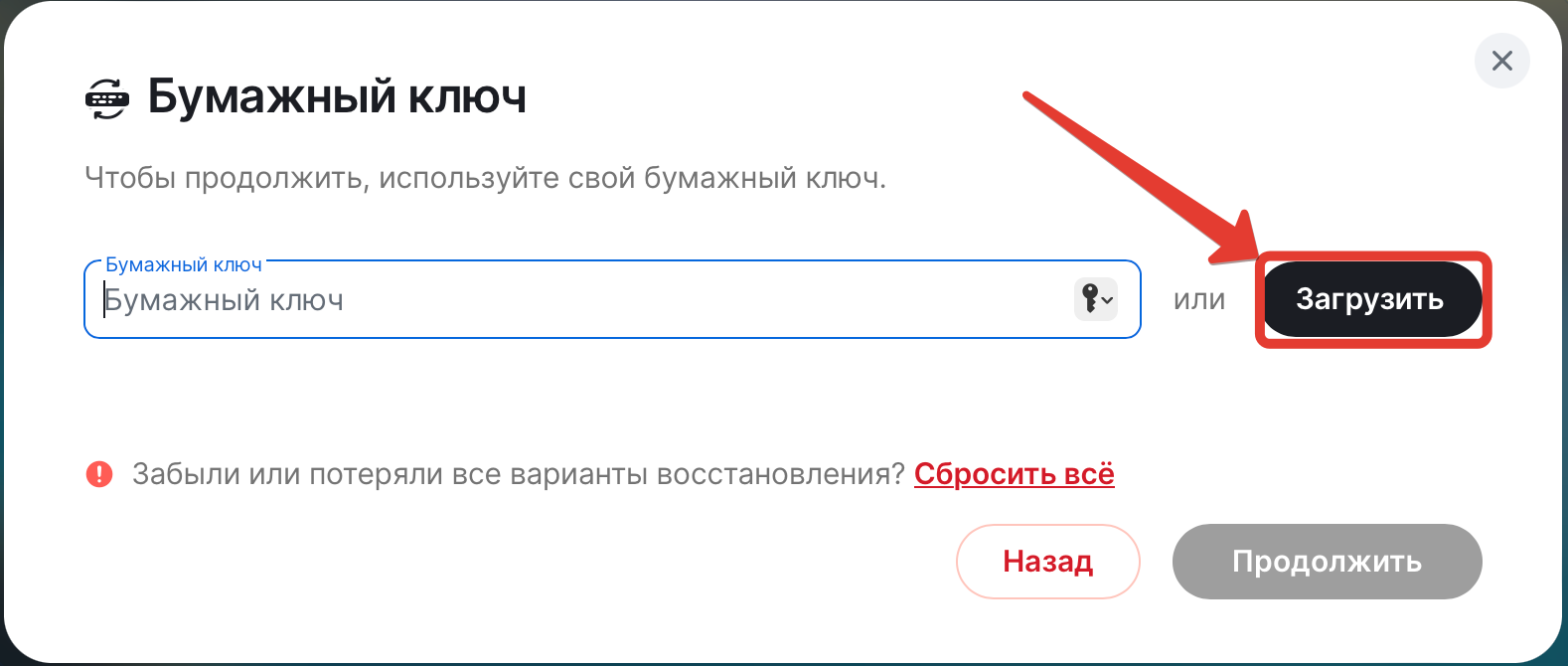
- In the new window, you will be offered to enter a “paper” key. Copy the saved key with a copy -paste or upload a file with a key in TXT format, which was saved when registering an account (“download” button).
If the downloaded keys are lost, you will have to drop the key and create a new one in the same scheme as with the initial safety settings.
When setting up new confirmation keys, you will see the following screens: 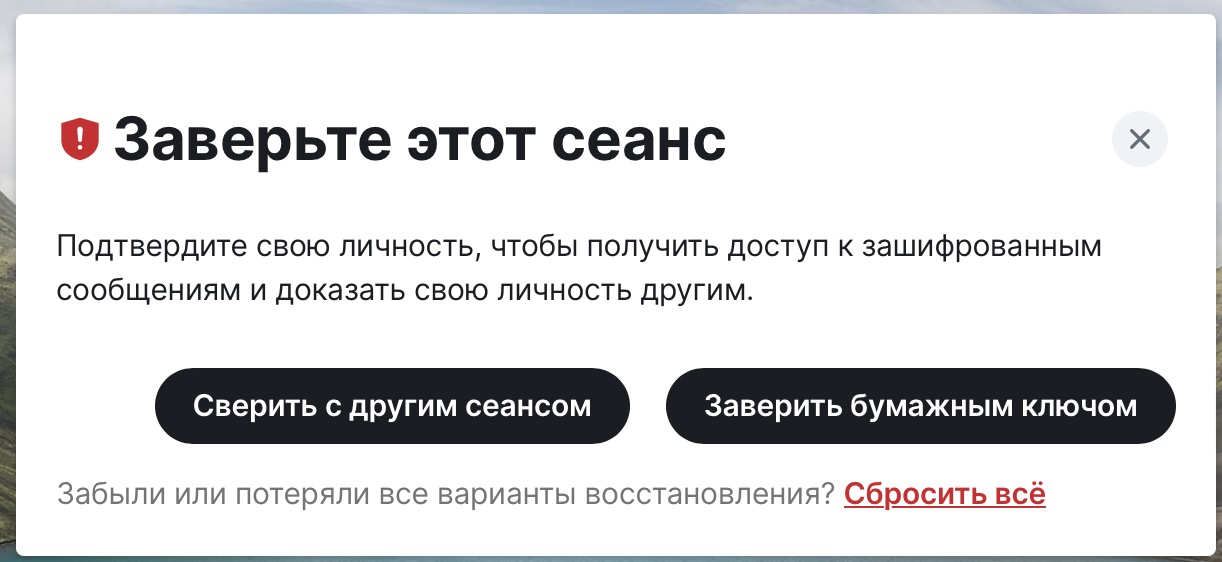
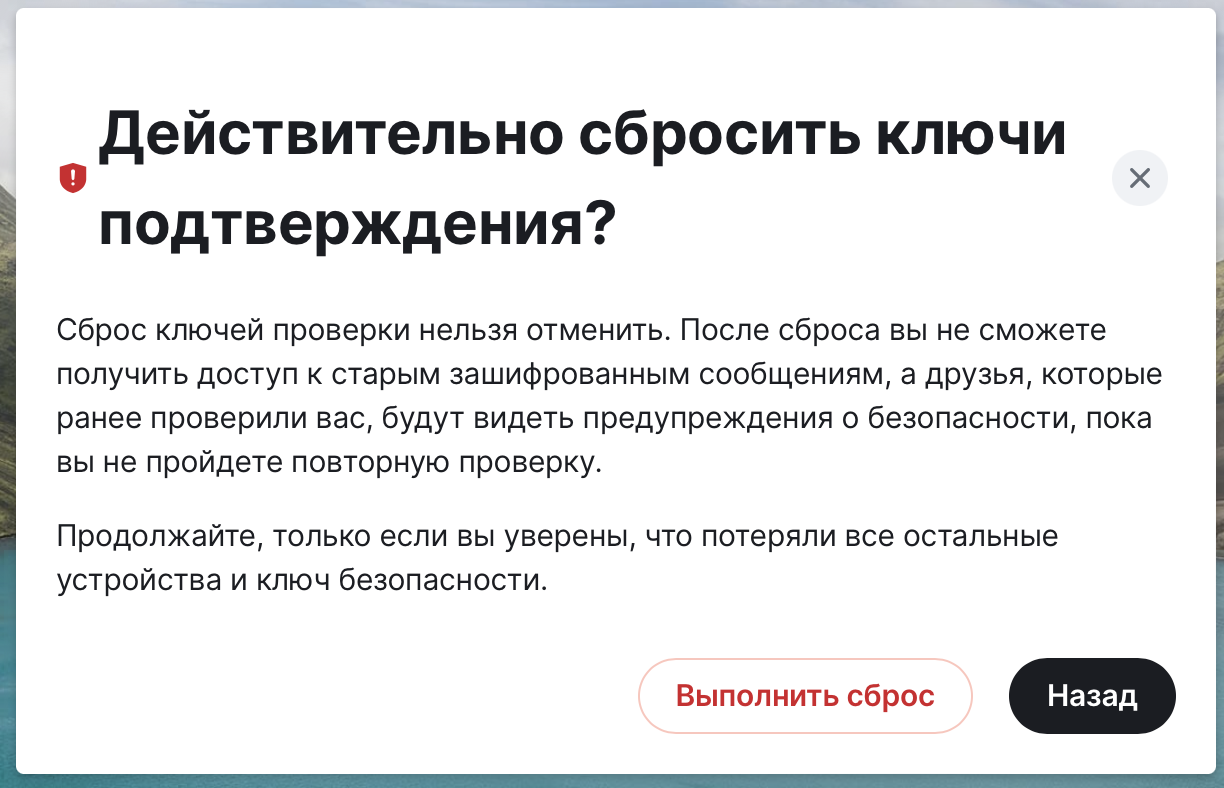
Be sure to save new keys and/or a secret phrase.
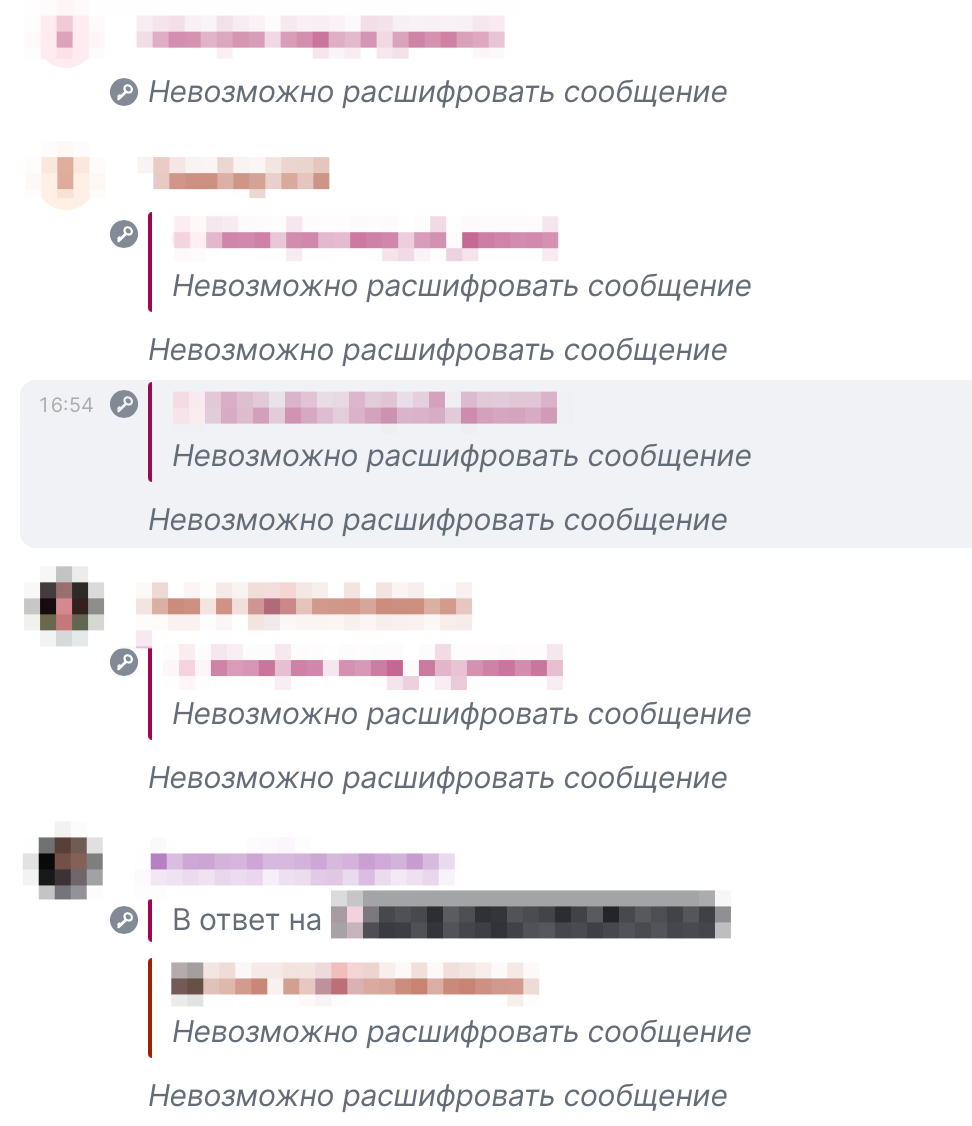
- I have been spitting, and now my correspondence looks encrypted. How to fix it?
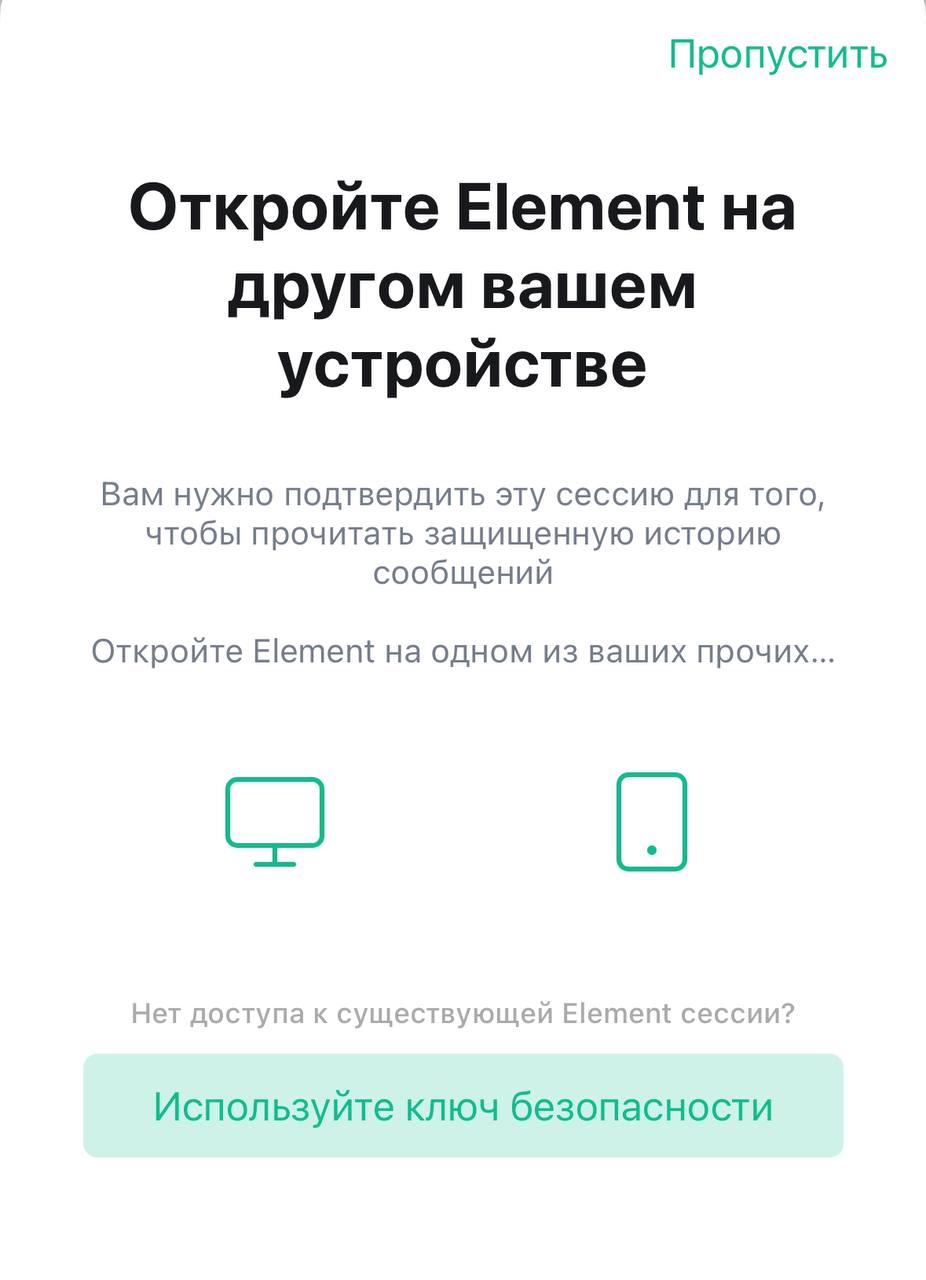
You need to re -enter the login and password. After entering the password, you will have a choice:
a) Confirm the entrance from another device where you are logged in or b) confirm the input with a secret phrase or key.
In the first case, you will see the following request:
And on the device with an active session - such a window:
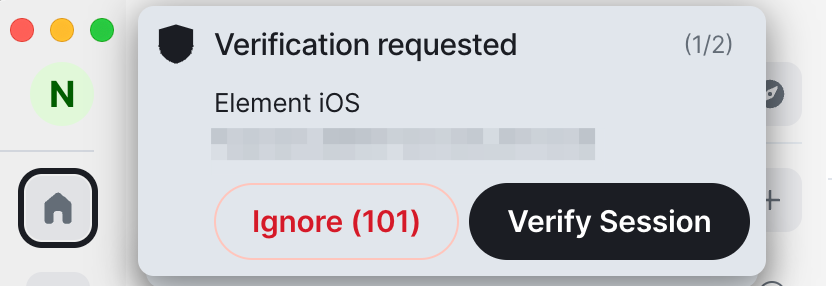
Click “Verify Session” (“Confirm the session”) and enter a secret phrase or confirmation key. All messages that came at a time when you were vaguely will remain encrypted.
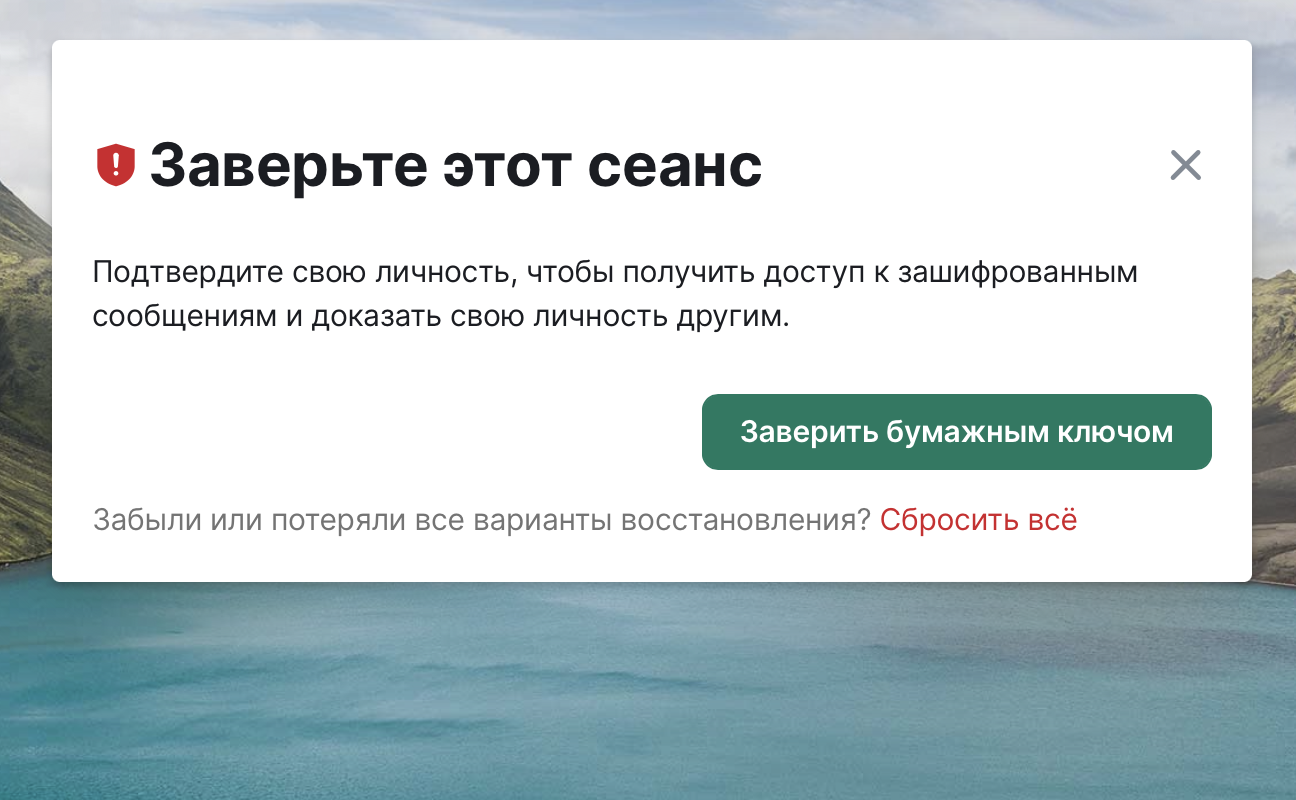
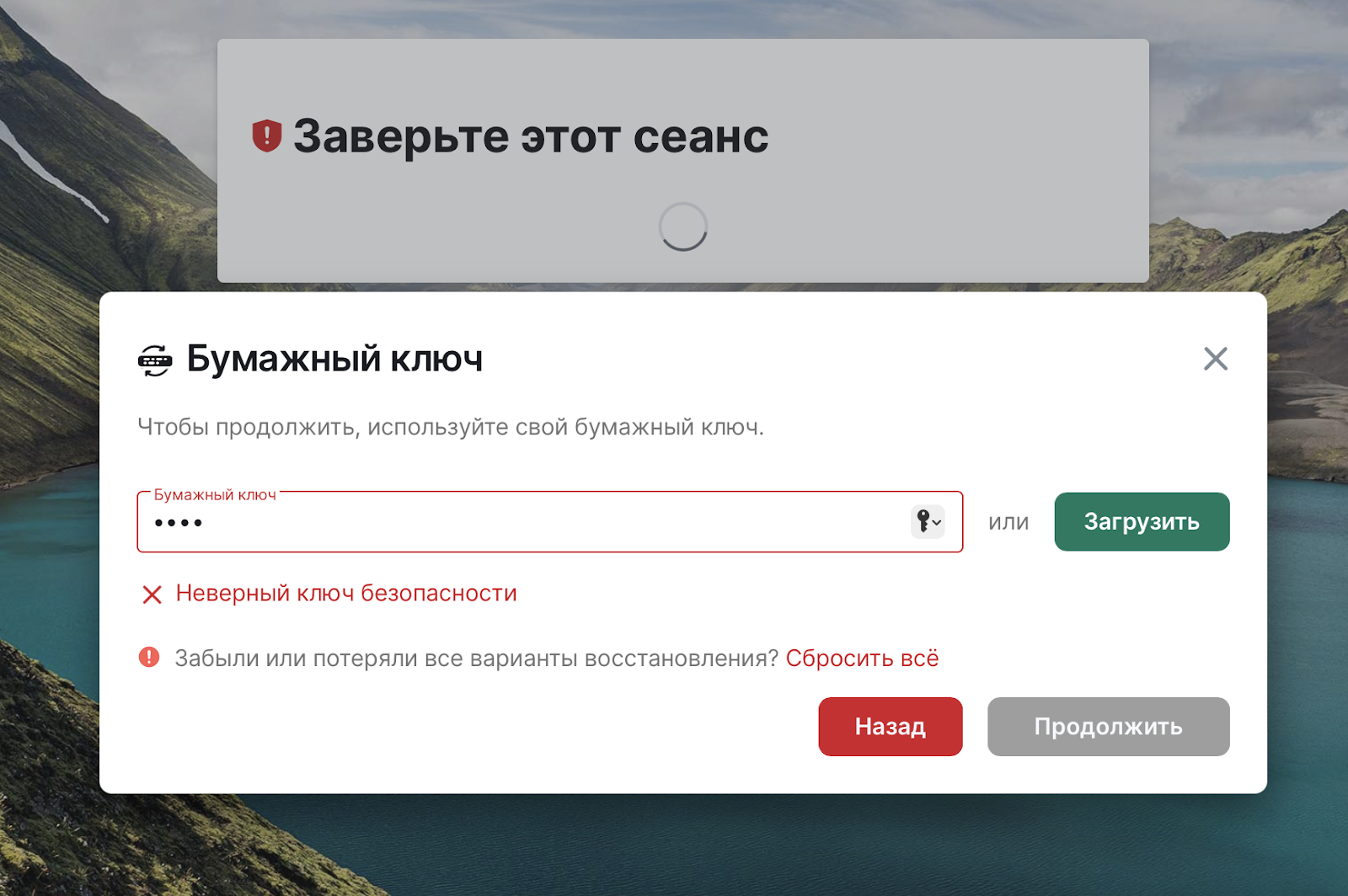
This is what encrypted correspondence will look like:
- The message meter works incorrectly. How to correct this?
This is a long -standing problem Element. Try to click on three points next to the name of the room (chat), in the window that opens, select the option “Mark as read/Mark as Read”.
- My correspondence was encrypted.
If you just went into the chat and see that all previous messages are encrypted, probably this is a hidden message history. In this case, only subsequent messages will be visible to you. If you do not see a message from a particular person, you need to assure the account session.
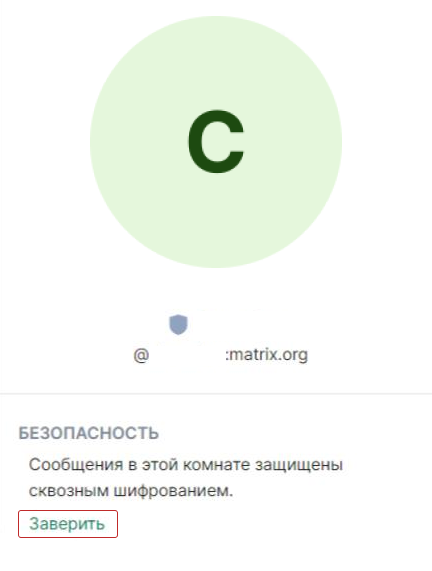
It is important to do this at the moment when you and the owner of the account are on the network.
If your messages are not visible to other people, it means that there is no suitable key on your device. To fix it:
- Check that you are connected to reserve key encryption. Go to the User Settings → “Safety and Privacy” and click “Start using backup backup”.
- Check if you sit at the same time from several devices. Because of this, synchronization can be lost.
- In safety settings, check the confirmation of the sessions (there should be no sessions illuminated by red). If there are unconfirmed sessions, confirm them.
- Ask another person to assure your account (as in paragraph 2)
- How to change the mail to which the account is attached?
Click on the icon with the first letter Nick → Go to “Settings” - “General” →
Remove the old email → Enter a new email.
Please note that each email in Element is unique, that is, only one account can be registered on one email.